Choose Your Download
Select the version that matches your Mac's processor to get started with Typeech.
Gatekeeper Notice
macOS might flag this app as "unidentified" because it's a new release. This is perfectly normal. Please follow the quick 3-step guide below to securely allow Typeech to run and manage your voice typing setup.
3 Quick Steps for macOS
1 Install the App
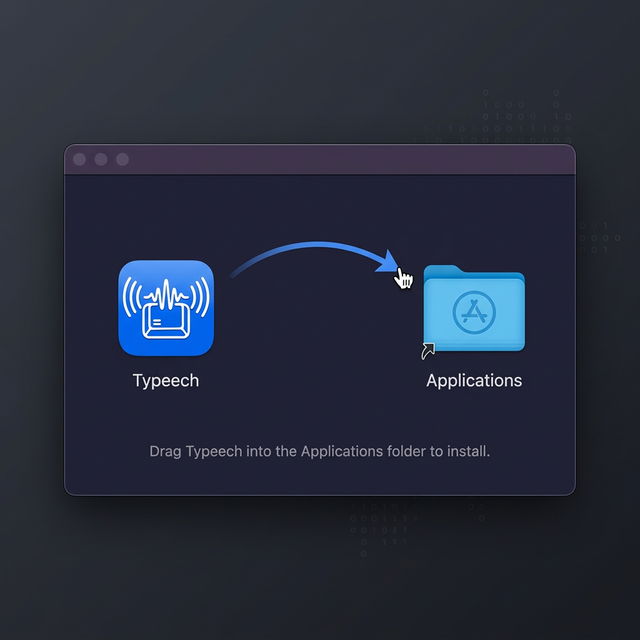
Once your download finishes, open the .dmg file.
Simply drag the Typeech icon into the Applications folder shortcut right next to it.
2 Bypass Gatekeeper
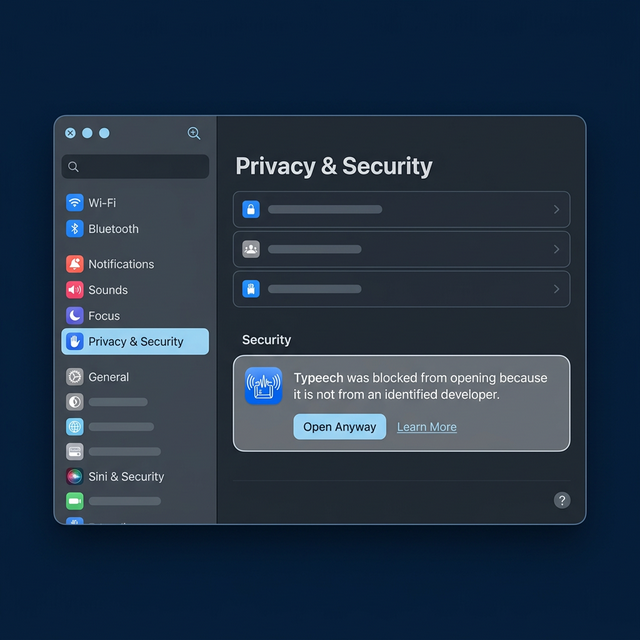
If you get a warning saying the app was blocked, don't worry! Go to:
System Settings → Privacy & Security.
Scroll down to the Security section and click the Open Anyway button next to the Typeech warning. Enter your Mac password if prompted.
3 Enable Global Hotkeys
Typeech works magically across any application on your Mac using global shortcuts, but macOS needs your permission first.
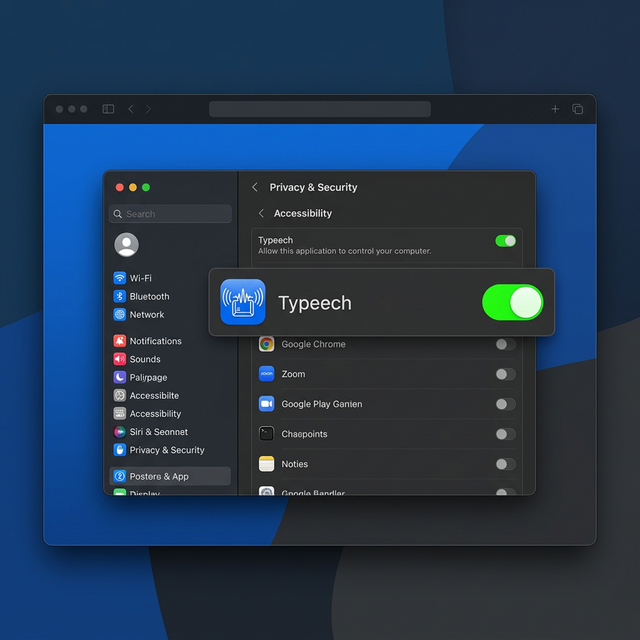
Go to System Settings → Privacy & Security → Accessibility.
Toggle the switch ON next to Typeech. You also need to enable Input Monitoring and grant Microphone Permissions when prompted so Typeech can hear your voice!